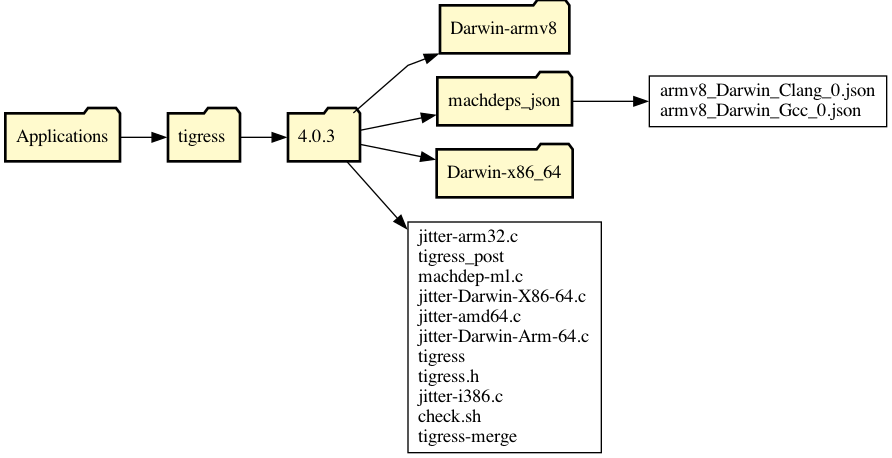
Version 4 installation: Download the relevant .pkg-file from the download page,
then open this file by ctrl-click-ing on the .pkg-file and selecting open. This is necessary since the package is currently
not signed. Alternatively, after downloading, in a Terminal,
type
> sudo installer -dumplog -pkg file.pkg -target ~     # On Apple Silicon Macs

> sudo installer -dumplog -pkg file.pkg> -target /   # On Intel Macs
Tigress will be installed in /Applications/tigress and links to the Tigress binaries will be added to
/usr/local/bin:.

You can run a simple installation check by typing this in a terminal:
> /Applications/tigress/TIGRESS-VERSION/check.sh
Version 0-3 installation: Download the relevant .zip-file.
Unzip and store the directory in the location of your choice. Add the distribution's version directory to your PATH, by adding these lines to your shell
startup file (.bashrc, .zshrc, .profile, etc, depending on your shell):
export TIGRESS_VERSION=4.2
export PATH=$PATH:/Users/alice/tigress-install/bin/tigress/$TIGRESS_VERSION
The interface to Tigress changed from Version 3 to 4. In Version 3, the "--Environment=..."
option was mandatory, and to specify the path to a compiler you would use the "--gcc=..." option:
> tigress --Environment=x86_64:Linux:Gcc:4.6 ...
> tigress --Environment=x86_64:Linux:Gcc:4.6 --gcc=PATH-TO-COMPILER ...
In Version 4, the "--Environment=..." option is optional (we will derive the platform from reasonable
assumption about the current environment), and to specify the path to a compiler you use the "--Compiler=..." option:
> tigress ...
> tigress --Environment=x86_64:Linux:Gcc:4.6 ...
> tigress --Environment=x86_64:Linux:Gcc:4.6 --Compiler=PATH-TO-COMPILER ...